---
title: "Request payments"
url: "https://docs.signnow.com/docs/request-payments-guide"
type: "page"
section: "Documentation"
slug: "request-payments-guide"
---
# Request payments
# Request payments
API users can connect a payment system to their personal SignNow account or organization to collect payments when sending documents for signature. After recipients complete their documents, they are redirected to a payment page.
Currently, SignNow supports the **Stripe** payment system.
This guide walks you through connecting a payment account and sending a field invite for a document group with a payment request.
## Prerequisites
- Before connecting the Stripe account, ensure that it is active.
> You can connect **only one payment account** at a time.
- Upload documents to SignNow and retrieve their IDs, which are required to add fillable fields and create a document group.
## Step 1. Connect the payment account
### Personal SignNow account
Use the [`POST /v2/merchant-accounts`](/docs/request-payments/operations/post-v2-merchant-accounts) request to connect your Stripe account to your personal SignNow account.
Add the following attributes:
- `currency` : The currency used for recipient transactions.
- `account_name` : Name of the payment account.
- `account_type` : The type of payment service. Allowed values: **`Stripe`**, **`StripeConnect`**.
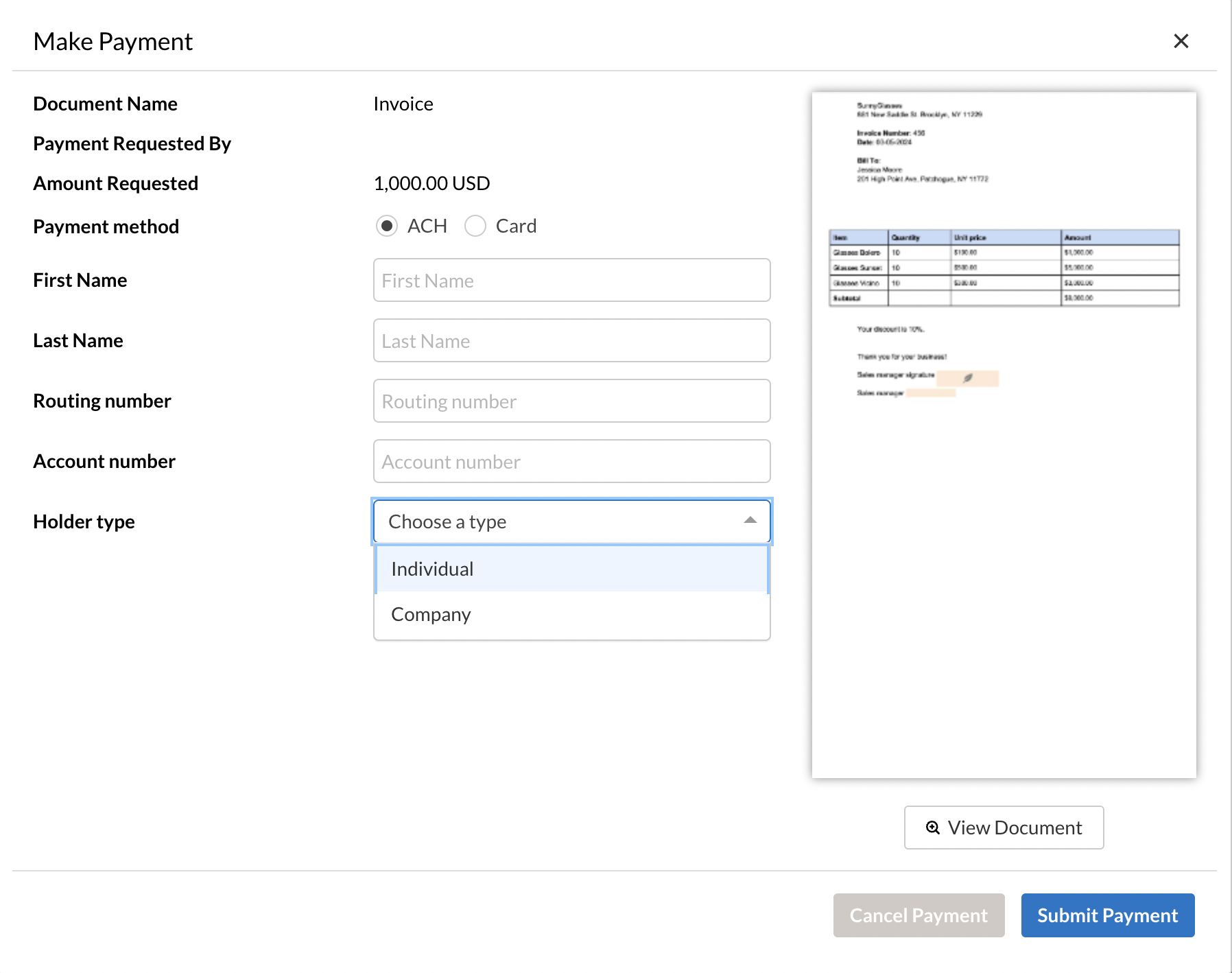
- `display_ach_form` : Defines whether to display the ACH payment form by Stripe.
**ACH payment form in the UI
**
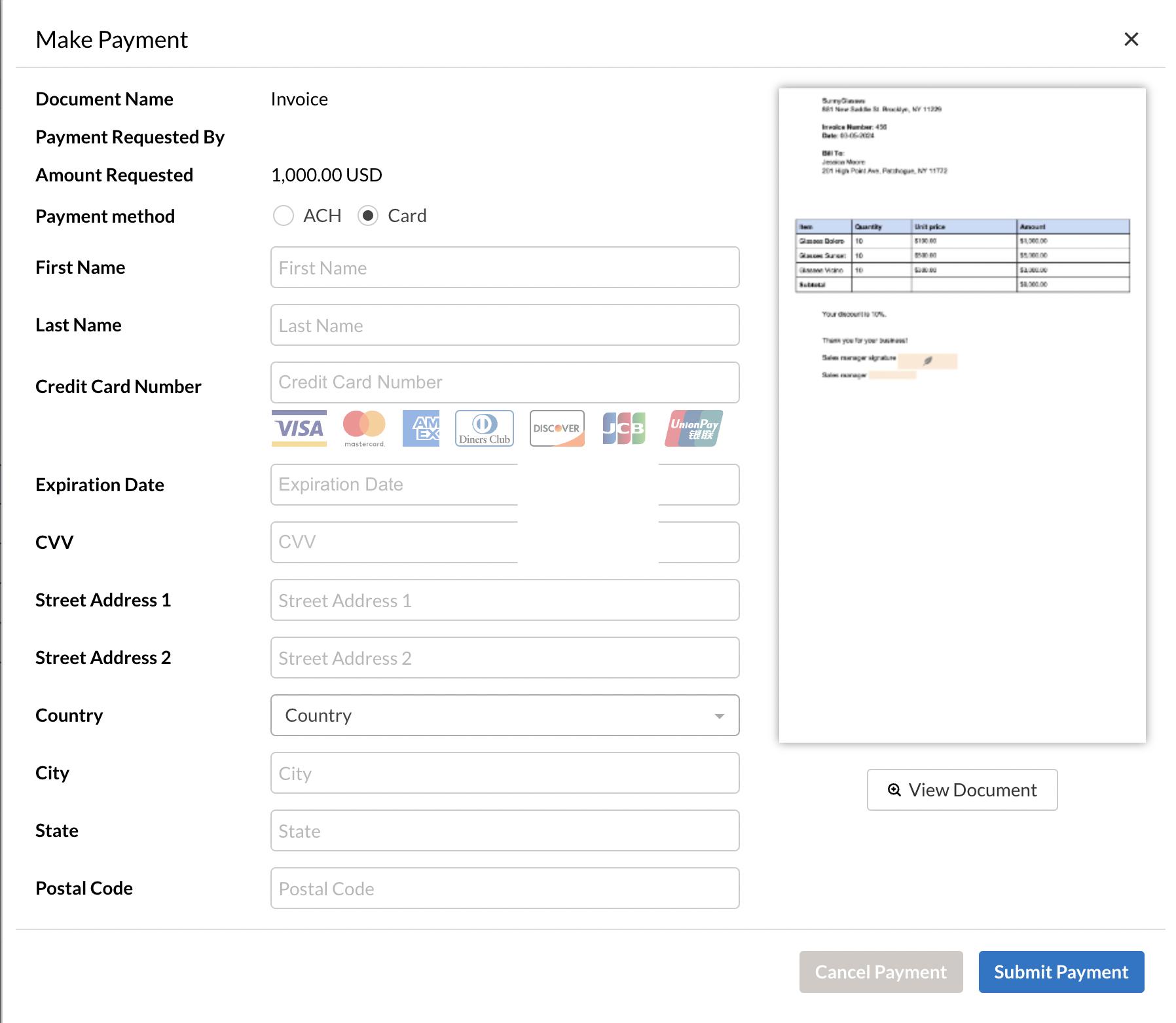
- `display_credit_card_form` : Defines whether to display the credit card form by Stripe.
**Credit card form in the UI
**
> Note that either `display_ach_form` or `display_credit_card_form` should be set to `true`.
- `publishable_key` : The publishable API key provided by Stripe. You can find it in your Stripe Dashboard.
- `secure_key` : The secret API key provided by Stripe. You can find it in your Stripe Dashboard.
**Request example**
```bash
curl --request POST \
--url https://api.signnow.com/v2/merchant-accounts \
--header 'Accept: application/json' \
--header 'Authorization: Bearer {{access_token}}' \
--header 'Content-Type: application/json' \
--data '{
"currency": "USD",
"account_name": "My Stripe",
"account_type": "Stripe",
"display_ach_form": true,
"display_credit_card_form": true,
"publishable_key": "pk_zzzz_zzzi7GDlOVChs1OowXjAiYYY",
"secure_key": "sk_xxxx_xxxrljcpCb9qbdk8IMXNyyyy"
}'
```
### SignNow organization
Use the [`POST /organizations/{{org_id}}/merchantaccount`](/docs/request-payments/operations/post-organizations-org-id-merchantaccount) request to connect your SignNow organization to the payment account.
> An organization is limited to one active account per payment service. The connected payment service will apply to all organization members by default.
**Request example**
```bash
curl --request POST \
--url https://api.signnow.com/organizations/{{organization_id}}/merchantaccount \
--header 'Accept: application/json' \
--header 'Authorization: Bearer {{access_token}} \
--data '{
"currency": "USD",
"account_name": "My Stripe",
"account_type": "Stripe",
"display_ach_form": true,
"display_credit_card_form": true,
"publishable_key": "pk_zzzz_zzzi7GDlOVChs1OowXjAiYYY",
"secure_key": "sk_xxxx_xxxrljcpCb9qbdk8IMXNyyyy"
}'
```
The successful response retrieves the payment account ID.
## Step 2. Add the payment request field to the document (optional)
You can add a payment request to the invite using one of the following types:
- **`calculated`:** Add a fillable field with a `validator_id` to the document. When the recipient completes the document, they'll be prompted to pay the amount specified in that field. You can also use formula fields to calculate the payment amount dynamically. For the `calculated` type, use one of the following validator IDs for the text field:
- **`7ef095fd94ce63b670b52b2e83457d59ac796a39`** — currency format 1, for European countries (example: 8,100.00)
- **`824085fd04ce63b670b11b2e83457d59ac796a39`** — currency format 2, for the United States (example: 8.100,60)
- **`fixed`:** Set a fixed payment amount that the recipient must pay after completing the document.
Use the [`POST /document/{{document_id}}`](/docs/document/operations/edit-document) request to add the field with the currency validator to the document. This allows you to send an invite with the `calculated` payment request type.
**Request example**
```bash
curl --request PUT \
--url [https://api.signnow.com/document/{{document_id}} \
--header 'Accept: application/json' \
--header 'Authorization: Bearer {{access_token}}' \
--header 'Content-Type: application/json' \
--data '{
"fields": [
{
"x": 358,
"y": 171,
"width": 177,
"height": 50,
"type": "text",
"page_number": 0,
"required": true,
"role": "Buyer",
"name": "payment_buyer",
"validator_id": "7ef095fd94ce63b670b52b2e83457d59ac796a39"
}
]
}'
```
## Step 3. Create a document group
Use [`POST /documentgroup`](/docs/document-group/operations/create-document-group) endpoint to create a document group.
In the `document_ids` array, specify the IDs of the documents to include in the group.
```bash
curl --request POST \
--url https://api.signnow.com/documentgroup \
--header 'Accept: application/json' \
--header 'Authorization: Bearer {{access_token}}' \
--header 'Content-Type: application/json' \
--data '{
"document_ids": [
"cdXXXXXXXXXXXXXXXXXXXXXXXXXXXXXXXXXXXXXX",
"ddXXXXXXXXXXXXXXXXXXXXXXXXXXXXXXXXXXXXXX"
],
"group_name": "Document Group"
}'
```
## Step 4. Send an invite with a payment request
Depending on the payment request `type`, the payload for the signature invite can differ.
> You can add only one payment request to the invite.
### Request for the **calculated** type
Add the following attributes to the `payment_request` object within the `invite_actions` array:
`field_id` : The ID of the field that defines the payment amount. Can be found in the [Get document](/docs/document/operations/get-document) response (fields.id).
`field_type` : The field type that defines the payment amount. Allowed value is **`text_fields`**.
`field_name` : The name of the field that defines the payment amount. Can be found in the [Get document](/docs/document/operations/get-document) response (fields.name).
`type`: The type of the payment request. Should be `calculated`.
`currency` : Payment currency in ISO format.
`merchants` : IDs of connected payment service accounts. Can be found in the [Get user](/docs/user/operations/get-user-info) response, [Get merchant account](/docs/request-payments/operations/get-organizations-org-id-merchantaccount-merchant-account-id) response (for organization), and [Get personal merchant account](/docs/request-payments/operations/get-v2-merchant-accounts) (for personal SignNow account).
**Request example**
```bash
curl --request POST \
--url https://api.signnow.com/documentgroup/{{group_id}}/groupinvite \
--header 'Content-Type: application/json' \
--header 'Authorization: Bearer {{access_token}}' \
--data-raw '{
"invite_steps": [
{
"order": 1,
"invite_emails": [
{
"email": "seller@email.com"
}
],
"invite_actions": [
{
"email": "seller@email.com",
"role_name": "Seller",
"action": "sign",
"document_id": "d31bb646ccca47aa9ab91eeb04c27458aeyyyyye"
}
]
},
{
"order": 2,
"invite_emails": [
{
"email": "buyer@email.com"
}
],
"invite_actions": [
{
"email": "buyer@email.com",
"role_name": "Buyer",
"action": "sign",
"document_id": "d31bb646ccca47aa9ab91eeb04c27458aeyyyyye",
"payment_request": {
"type": "calculated",
"currency": "USD",
"merchants": [
"5ef7e3853f4a4624a037d90d20513a195937dxxx"
],
"field_name": "payment_buyer",
"field_type": "text_fields",
"field_id": "eb1dc1e1946f47cd87fa4a63664803bddba6fff"
}
}
]
}
]
}'
```
### Request for the **fixed** type
Add the following attributes to the `payment_request` object within the `invite_actions` array:
`type` : The type of the payment request. Should be `fixed`.
`currency` : Payment currency in ISO format.
`amount` : Payment amount.
`merchants` : IDs of connected payment service accounts. Can be found in the [Get user](/docs/user/operations/get-user-info) response, [Get merchant account](/docs/request-payments/operations/get-organizations-org-id-merchantaccount-merchant-account-id) response (for organization), and [Get personal merchant account](/docs/request-payments/operations/get-v2-merchant-accounts) (for personal SignNow account).
**Request example**
```bash
curl --request POST \
--url https://api.signnow.com/documentgroup/{{group_id}}/groupinvite \
--header 'Content-Type: application/json' \
--header 'Authorization: Bearer {{access_token}}' \
--data-raw '{
"invite_steps": [
{
"order": 1,
"invite_emails": [
{
"email": "seller@email.com"
}
],
"invite_actions": [
{
"email": "seller@email.com",
"role_name": "Seller",
"action": "sign",
"document_id": "d31bb646ccca47aa9ab91eeb04c27458aeyyyyye"
}
]
},
{
"order": 2,
"invite_emails": [
{
"email": "buyer@email.com"
}
],
"invite_actions": [
{
"email": "buyer@email.com",
"role_name": "Buyer",
"action": "sign",
"document_id": "d31bb646ccca47aa9ab91eeb04c27458aeyyyyye",
"payment_request": {
"currency": "USD",
"type": "fixed",
"amount": "1000",
"merchants": [
"5ef7e3853f4a4624a037d90d20513a195937dxxx"
]
}
}
]
}
]
}'
```
The successful request retrieves the document group invite ID.
## How it looks in the UI
Once the recipient completes the document with the payment request, the **Save and Pay** button appears.

Clicking the button opens the payment form.

---
*Full page: https://docs.signnow.com/docs/request-payments-guide*