---
title: "Fields"
url: "https://docs.signnow.com/docs/fields"
type: "page"
section: "Documentation"
slug: "fields"
---

# Fields

# About fields

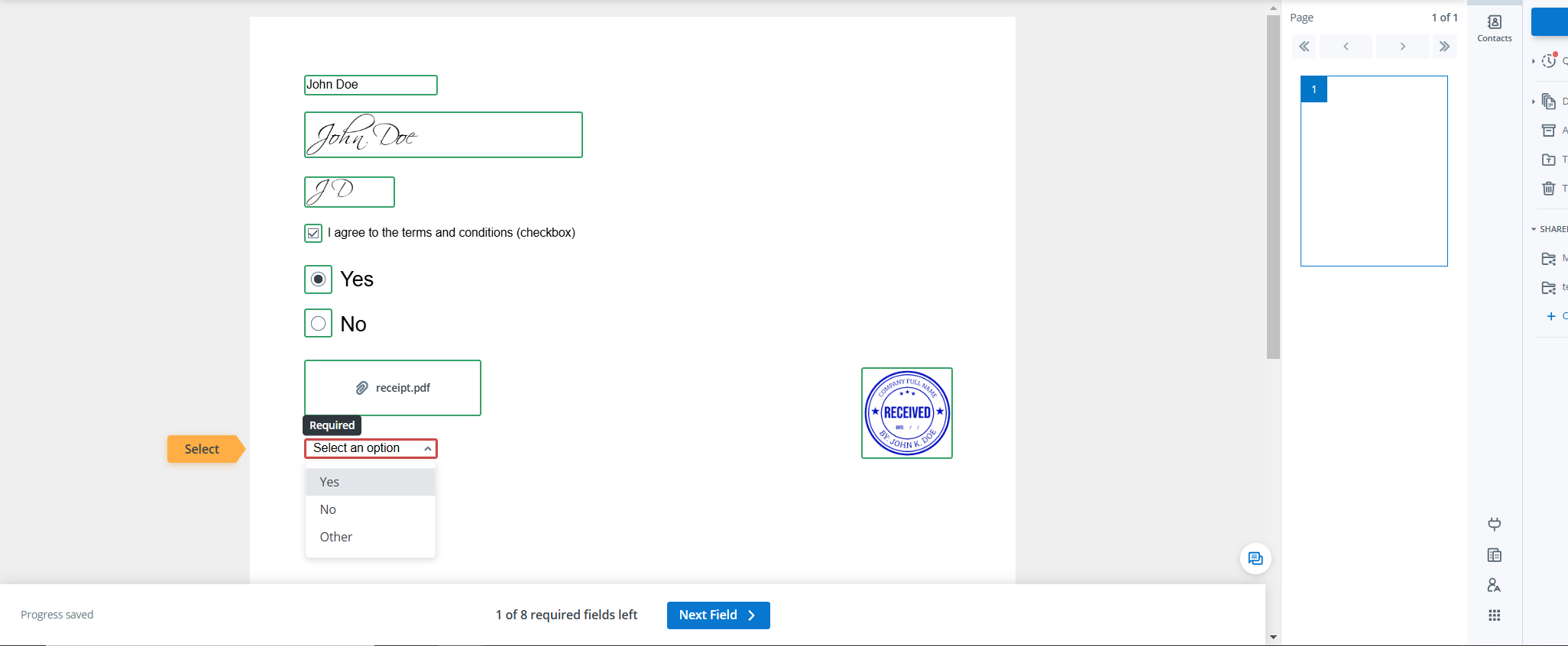
Add fields to documents so signers can fill them out. You can add fields only to documents not sent to signers. Depending on your needs, there are multiple [field types](/docs/fields#field-types).

To add fields to a document, use [`PUT /document/{{document_id}}`](/docs/request-payments/operations/put-document-document_id). This endpoint allows adding the following fields to a document:

- Regular fields
- Fields completed by you
- Payment requests
- Conditional fields
- Formulas (calculated fields)
- Smart fields

<!-- theme: warning -->

> If you use this request with a document with fields, new fields will override the old ones.

The required field attributes are the following:

- `type`: field type. Possible values:
  - `text`
  - `signature`
  - `initials`
  - `checkbox`
  - `attachment`
  - `hyperlink`
  - `radio button`
  - `enumeration` (a dropdown menu)
  - `stamp`
- `required`: if a field is required.
- `role`: recipient role.
- `page_number`: page number for the field (starting with 0).
- `x`: a horizontal position of the field.
- `y`: a vertical position of the field.
- `width`: field width.
- `height`: field height.

An optional field attribute:

- `name`: a unique field name. It helps to identify the field quickly when setting up conditions and formulas.

<!-- theme: info -->

> Both position and size fields use pixels. A4 format dimensions are:<br><br>300 DPI resolution: 2480 ⨯ 3508 pixels<br>72 DPI resolution:  595 ⨯ 842 pixels.

**Text field example**

```json
{
    "type": "text",
    "required": true,
    "role": "Signer 1",
    "page_number": 0,
    "x": 217,
    "y": 32,
    "width": 50,
    "height": 20,
    "name": "first_name"
}
```

## Field types

![Examples_of_fields.png](/reference-assets/images/Fields%20guide/Examples_of_fields.png)

<table style="width:100%">
<thead>
<tr>
<th> Field type </th> <th> Type specific attributes </th> <th style="width:40%"> Example </th>
</tr>
</thead>
<tr>
<td>text</td>
<td>

- `prefilled_text`: editable text that appears in the field when the signer opens the document.
- `lock_to_sign_prefill`: locks the pre-filled text to prevent the signer from editing it. Set to `true` to make the field read-only. Set to `false` to allow the signer to modify the pre-filled value. Default is `false`. Applies to `text` fields and requires a non-empty `prefilled_text` parameter.
- `label`: a hint for a recipient added to the field. When a recipient has filled out a labeled `text` field, all other `text` fields with the same `label` will be automatically filled out with the same data when the recipient clicks on that `text` field.
- `validator_id`: a string that adds format validation, such as date or email address. For a complete list of validators, use a `GET /validator` request or see [Data validators](/docs/fields#data-validators).
- `stretch_mode`: defines how the field is stretched if it's overflowed
  - `fixed` (no changes)
  - `horizontal`
  - `vertical`
  - `auto`
- `max_lines`: maximum number of lines
- `max_chars`: maximum number of characters
- `arrangement`
  - `cells`: fit characters in individual cells. If used, the number of cells is set by `max_chars`
  - `none`
- `bold`
- `italic`
- `underline`
- `font`
  - Arial
  - Times New Roman
  - Courier New
  - Tahoma
  - Comic Sans MS
- `font_size`
- `color`: 6-number HEX color code
- `align`: horizontal alignment
  - `left`
  - `center`
  - `right`
- `valign`: vertical alignment
  - `top`
  - `middle`
  - `bottom`

</td>
<td>

```json
{
    "type": "text",
    "required": true,
    "role": "Signer 1",
    "page_number": 0,
    "x": 217,
    "y": 32,
    "width": 50,
    "height": 20,
    "prefilled_text": "First name",
    "stretch_mode": "horizontal",
    "align": "center"
}
```

</td>
</tr>
<tr>
<td>signature</td>
<td>

`allowed_types`: an array of strings that define how the document can be signed. Possible values:

- `type` (user types the signature)
- `draw` (user draws the signature)
- `upload` (user uploads an image with the signature)

By default, all types are allowed.

</td>
<td>

```json
{
    "type": "signature",
    "required": true,
    "role": "Signer 1",
    "page_number": 0,
    "x": 217,
    "y": 32,
    "width": 50,
    "height": 20,
    "allowed_types": [
        "draw"
    ]
}

```

</td>
</tr>
<tr>
<td>initials</td>
<td>

`allowed_types`: an array of strings that define how the initials can be added. Possible values:

- `type` (user types the signature)
- `draw` (user draws the signature)

By default, all types are allowed.

</td>
<td>

```json

{
    "type": "signature",
    "required": true,
    "role": "Signer 1",
    "page_number": 0,
    "x": 217,
    "y": 32,
    "width": 50,
    "height": 20,
    "allowed_types": [
        "draw"
    ]
}

```

</td>
</tr>
<tr>
<td>checkbox</td>
<td>

- `prefilled_text`: if true, the checkbox is checked. By default, it's false.
- `value`: Value set to the checkbox field.

</td>
<td>

```json

{
    "type": "checkbox",
    "required": true,
    "role": "Signer 1",
    "name": "checkbox_field",
    "value": "Option 1",
    "page_number": 0,
    "x": 217,
    "y": 32,
    "width": 15,
    "height": 15,
    "prefilled_text": 1
}

```

</td>
</tr>
<tr>
<td>attachment</td>
<td>

`label`: a hint in the field. When a dropdown value is selected, the label appears when a signer hovers over the field.
</td>
<td>

```json

{
    "type": "attachment",
    "name": "photo",
    "label": "Your photo",
    "required": true,
    "role": "Signer 1",
    "page_number": 0,
    "x": 217,
    "y": 32,
    "width": 15,
    "height": 15
}

```

</td>
</tr>
<tr>
<td>hyperlink</td>
<td>

**Required**

- `link`: a link that a signer can open.

**Optional**

- `hint`: a hint that appears when a signer hovers over the field.
- `label`: a name of the link in the field. It also appears when a signer hovers over the field.

Note: by default, hyperlink fields are off. To start using them, contact [SignNow support](https://support.signnow.com/).

</td>
<td>

```json

{
    "type": "hyperlink",
    "link": "https://uniquesolutions.com",
    "name": "website",
    "label": "Company website",
    "hint": "For more information, follow the link",
    "required": true,
    "role": "Signer 1",
    "page_number": 0,
    "x": 217,
    "y": 32,
    "width": 40,
    "height": 10
}

```

</td>
</tr>
<tr>
<td>radio button</td>
<td>

**Required**

- `radio`: an array of radio buttons. Each button must have the following attributes:
  - `x`
  - `y`
  - `width`
  - `height`
  - `page_number`
  - `value`

**Optional**

- `prefilled_text`: a value that should be checked. By default, no value is checked.

</td>
<td>

```json

{
    "page_number": 0,
    "type": "radiobutton",
    "name": "US residency",
    "role": "Signer 1",
    "required": true,
    "x": 389,
    "y": 141,
    "width": 23,
    "height": 23,
    "radio": [
        {
            "x": 389,
            "y": 141,
            "width": 23,
            "height": 23,
            "page_number": 0,
            "value": "Yes"
        },
        {
            "x": 389,
            "y": 170,
            "width": 23,
            "height": 23,
            "page_number": 0,
            "value": "No"
        }
    ],
    "prefilled_text": "Yes"
}

```

</td>
</tr>
<tr>
<td>enumeration (dropdown)</td>
<td>

**Required**

- `enumeration_options`: an array of strings with the dropdown options.

**Optional**

- `custom_defined_options`: if true, a signer can type a new option. By default, it's false.
- `label`: a hint in the field. When a dropdown value is selected, the label appears when a signer hovers over the field.

<img src="/reference-assets/images/Fields%20guide/Custom_defined_dropdown.png" alt="Custom defined option example">

</td>
<td>

```json

{
    "fields": [
        {
            "page_number": 0,
            "type": "enumeration",
            "name": "Department",
            "label": "Your department",
            "role": "Signer 1",
            "required": true,
            "custom_defined_option": true,
            "enumeration_options": [
                "HR",
                "IT",
                "Finance"
            ],
            "height": 40,
            "width": 70,
            "x": 100,
            "y": 32
        }
    ]
}

```

</td>
</tr>
<tr>
<td>stamp</td>
<td>
No additional attributes
</td>
<td>

```json

{
    "type": "stamp",
    "required": true,
    "role": "Signer 1",
    "page_number": 0,
    "x": 217,
    "y": 32,
    "width": 100,
    "height": 100,
    "name": "Company stamp"
}

```

</td>
</tr>
</table>

## Data validators

Use data validators to set a field format by adding a validator ID to your tag. For a list of validator IDs, use `GET /validator` or see the table below.

For [payment requests](/docs/reference) with field values, use the following validator IDs:

- US dollars: `150662c7221a6a6ebcbb7c50ca46359d19757f81`
- 12,345.60 format: `7ef095fd94ce63b670b52b2e83457d59ac796a39`
- 12.345,60 format: `824085fd04ce63b670b11b2e83457d59ac796a39`

![Data_validation.png](/reference-assets/images/Fields%20guide/Data_validation.png)

![Currency field.png](/reference-assets/images/Fields%20guide/Currency%20field.png)

![Date field.png](/reference-assets/images/Fields%20guide/Date%20field.png)

| Format                                         | Example                                                                 | Validator ID                             |
| ---------------------------------------------- | ----------------------------------------------------------------------- | ---------------------------------------- |
| **DD/MM/YYYY**                                 | 27/11/2008                                                              | 059b068ef8ee5cc27e09ba79af58f9e805b7c2b3 | 
| **MM/DD/YYYY**                                 | 09/28/2008                                                              | 13435fa6c2a17f83177fcbb5c4a9376ce85befeb |
| **DD-MON-YYYY**                                | 9-MAY-1981                                                              | 07c1e60f3da1192b60aca6f7e72d9b17a44539e5 |
| **DD/MM/YY**                                   | 31/12/75                                                                | 0b61eb6a696da953910f195b30c86e5131f3ae3e |
| **Mmm dd, yyyy**                               | Jan 1, 2003<br>December 12, 1999                                        | 0f4827a308018f98b11ae3923104685ff0c03070 |
| **Date and time**                              | 9/28/2008 3:49:00 PM<br><br>AM/PM is optional                           | 06448a0d0eb6a71c7c116ec4754bcb04ebf11da5 |
| **Time**                                       | 23:49<br>3:49                                                           | 09d3bb6a5eb6598edb7bfad02b0143d8c68ad788 |
| **Number**                                     | 1234<br>123.40<br>1,234.50<br><br>Comma separators are optional         | 1109cfbbb06311a06a4c7f8d04f1f0d5c44103cb |
| **US phone number**                            | (123) 456-7890                                                          | 13cc1d661da456d27b249b73056ed4d1f2e72d8e |
| **US currency**                                | $1,234.50<br><br>Comma separators and periods for decimals are required | 150662c7221a6a6ebcbb7c50ca46359d19757f81 |
| **US ZIP code**                                | 92663<br>92663-1234                                                     | 1671f4eb87444a24e1e00f149bade8b7cf3af5da |
| **Age**                                        | 59                                                                      | 1a203fa91791b0458608be045a454ba90557fb26 |
| **Positive integer**                           | 123                                                                     | 1f9486ae822d30ba3df2cb8e65303ebfb8c803e8 |
| **Positive or negative integer**               | 123<br>–123                                                             | 23a57c29fa089e22bcf85d601c8091bc9c7da570 |
| **US state**                                   | CA<br>NY                                                                | 3123849de563f9e14acacc2739467e3d30e426b6 |
| **Alphanumeric** (letters and digits only)     | abc123                                                                  | 3859296fffd39cb8efeaffda5899973c014ce42e |
| **Email address**                              | <j.doe@mail.com>                                                        | 7cd795fd64ce63b670b52b2e83457d59ac796a39 |
| **Credit card number**                         | 4932-2712-0994-7177<br>3412-123456-12345                                | 2f1c408bdf2f99fc5d4c342249da88ce5d2a5f02 |
| **Social security number (SSN)**               | 123-456-789<br>123456789                                                | 2cd795fd64ce63b670b52b2e83457d59ac796a39 |
| **Bank routing transit number (RTN)**          | 614321634                                                               | 959b068ef8ee5cc27e09ba79af58f9e805b7c2b3 |
| **Currency amount format 1**                   | 73,234.55                                                               | 7ef095fd94ce63b670b52b2e83457d59ac796a39 |
| **Currency amount format 2**                   | 73.234,55                                                               | 824085fd04ce63b670b11b2e83457d59ac796a39 |
| **Positive integers in US format**             | 200,000                                                                 | 4cf9dfe7e65eb0a2c0c93e199f1ec1cdc23a267d |
| **Positive or negative integers in US format** | 200,000<br>–8,000                                                       | f031b8b63127c6915949bfc55e3cc81edbb12ecc |
| **Positive integers in EU format**             | 100.000                                                                 | 8937f6d0511167d67c6b21fe07c9ccd3a8116126 |
| **Positive or negative integers in EU format** | 100.000<br>–1.000                                                       | e8b7248b323525d1e8d5240ccf87d8c2926622cd |

## Checkbox groups

Use `checkbox_groups` to group checkbox fields and apply validation rules that control how many checkboxes a signer must check.

**Prerequisites**

- All checkbox fields referenced in `checkbox_groups` must be defined in the `fields` array of the same request.
- When `checkbox_groups` is present, every `checkbox` field in the request must belong to exactly one group.
- All checkboxes in a group must have `required` set to `false`.
- All checkboxes in a group must be assigned to the same role.

> `checkbox_groups` is a separate top-level array in the [`PUT /document`](/docs/request-payments/operations/put-document-document_id) request body, not nested inside `fields`.


<table style="width:100%">
<thead>
<tr>
<th> Field</th> <th>Specific attributes </th> <th style="width:40%">Example </th>
</tr>
</thead>
<tr>
<td>Checkbox groups</td>

<td>

- `name` A unique group name within the document.
- `checkbox_names` An array of name values of the checkbox fields to include in the group. Must contain at least one item.
- `validation_type` Validation rule applied to the group. Possible values: `at_least`, `at_most`, `exactly`, `none`.
- `validation_amount` The number of checkboxes that must be checked (between 1 and the total number of checkboxes in the group). Must be null when `validation_type` is `none`.

</td>

<td>

First, define the checkbox fields in `fields`:

```json
{
    "fields": [
        {
            "type": "checkbox",
            "role": "Signer 1",
            "name": "visa",
            "value": "Visa",
            "required": false,
            "x": 100,
            "y": 200,
            "width": 20,
            "height": 20,
            "page_number": 0
        },
        {
            "type": "checkbox",
            "role": "Signer 1",
            "name": "mastercard",
            "value": "Mastercard",
            "required": false,
            "x": 100,
            "y": 230,
            "width": 20,
            "height": 20,
            "page_number": 0
        },
        {
            "type": "checkbox",
            "role": "Signer 1",
            "name": "paypal",
            "value": "PayPal",
            "required": false,
            "x": 100,
            "y": 260,
            "width": 20,
            "height": 20,
            "page_number": 0
        }
    ]
}
```

Then reference them in `checkbox_groups`:

```json
{
    "checkbox_groups": [
        {
            "name": "payment_options",
            "checkbox_names": [
                "visa",
                "mastercard",
                "paypal"
            ],
            "validation_type": "at_least",
            "validation_amount": 1
        }
    ]
}
```

</td>


</td>
</tr>
</table>

## Completed fields

You can add completed fields by adding the following arrays to<br>the [`PUT /document/{{document_id}}`](/docs/request-payments/operations/put-document-document_id) request body:

- `texts`: text fields
- `signatures`: signatures, initials, and stamps
- `checks`: checkmarks
- `lines`: line elements

Unlike empty fields, newly added completed fields don't override existing fields, completed or not.

<table style="width:100%">
<thead>
<tr>
<th> Field type </th> <th> Properties </th> <th style="width:45%"> Example </th>
</tr>
</thead>
<tr>
<td>Text fields</td>
<td>
Required properties:

- `data`
- `x`
- `y`
- `page_number`
- `font`
- `size`

Other formatting properties match the [properties](/docs/fields#field-types) of the regular text field.

</td>
<td>

```json
{
    "texts": [
        {
            "data": "text",
            "x": 450,
            "y": 750,
            "font": "Arial",
            "size": 25,
            "page_number": 0
        }
    ]
}
```

</td>
</tr>
<tr>
<td>Signatures, initials, and stamps</td>
<td>
To add a signature, you need its `data`. Find the `data` attribute by sending a <a href="/docs/document/operations/get-document">GET /document</a> request for a document signed by you. 

`data` is a long string stored in the <samp>signatures</samp> array in the response.

The same applies to initials and stamps.

Required properties:

- `data` of a signature, initials, or stamp
- `x`
- `y`
- `width`
- `height`
- `page_number`

</td>
<td>

```json
{
    "signatures": [
        {
            "data": "iVBORw0KGgoAAAANSUhEUgAAAIAAAAA/CAQAAACCqwjgAAAABGdBTUEAALGPC/xhBQAAACBjSFJNAAB6JgAAgIQAAPoAAACA6AAAdTAAAOpgAAA6mAAAF3CculE8AAAAAmJLR0QAAKqNIzIAAAAHdElNRQfoCBQKMTujCdMGAAAGW0lEQVRo3t2ae1BUVRzHPwsIomiIIIYZo6Hh+M7CFDXT...",
            "x": 450,
            "y": 100,
            "width": 50,
            "height": 50,
            "page_number": 0
        }
    ]
}
```

</td>
</tr>
<tr>
<td>Checkmarks</td>
<td>
Required properties:

- `x`
- `y`
- `width`
- `height`
- `page_number`

</td>
<td>

```json
{
    "checks": [
        {
            "x": 450,
            "y": 450,
            "width": 100,
            "height": 100,
            "page_number": 0
        }
    ]
}
```

</td>
</tr>
<tr>
<td>Lines</td>
<td>
Required properties:

- `page_number`
- `subtype`: must be `line`
- `x`
- `y`
- `width`
- `height`
- `control_points`: an array of four numbers defining the start and end points of the line: [x1, y1, x2, y2]
- `fill_color`: line color as a hex color code (without the # prefix)
- `line_width`: stroke width in pixels

</td>
<td>

```json
{
  "lines": [
    {
      "page_number": 0,
      "subtype": "line",
      "x": 20,
      "y": 20,
      "height": 20,
      "width": 20,
      "control_points": [
        265,
        59,
        556,
        57
      ],
      "fill_color": "E15554",
      "line_width": 2
    }
  ]
}
```


</td>
</tr>
</table>

## Conditional fields

Set up fields that appear when other fields are empty or completed. For example, if a team member selects the 'Vacation' checkbox, a text field for vacation dates appears.

Conditional fields support the following operators:

<table>
<tr>
    <td>AND</td>
    <td>Two or more fields fulfill the conditions</td>
</tr>
<tr>
    <td>OR</td>
    <td>At least one field fulfills the condition</td>
</tr>
<tr>
    <td>NOT AND</td>
    <td>None of the fields fulfill the conditions</td>
</tr>
<tr>
    <td>NOT OR</td>
    <td>At least one of the fields doesn't fulfill the condition</td>
</tr>
</table>

**Payload example**

<!--
type: tab
title: Simple condition
-->

If Field 1 is not filled, Field 2 appears

```json
{
    "fields": [
        {
            "page_number": 0,
            "role": "Signer 1",
            "type": "signature",
            "name": "Field 1",
            "required": false,
            "width": 122,
            "height": 34,
            "x": 88,
            "y": 15
        },
        {
            "page_number": 0,
            "role": "Signer 2",
            "type": "signature",
            "name": "Field 2",
            "dependency": {
                "operator": "not",
                "parent": [
                    {
                        "field_name": {
                            "dependency": {
                                "parent": [
                                    {
                                        "field_name": "Field 1"
                                    }
                                ],
                                "operator": "is_true"
                            }
                        }
                    }
                ]
            },
            "required": true,
            "width": 122,
            "height": 34,
            "x": 156,
            "y": 83
        }
    ]
}
```

<!--
type: tab
title: Complex condition
-->

If neither Field 1 nor Field 2 are filled, Field 3 appears

```json
{
    "fields": [
        {
            "page_number": 0,
            "role": "Signer 1",
            "type": "text",
            "name": "Field 1",
            "required": false,
            "x": 70,
            "y": 43,
            "width": 30,
            "height": 15
        },
        {
            "page_number": 0,
            "role": "Signer 1",
            "type": "text",
            "name": "Field 2",
            "required": false,
            "x": 70,
            "y": 83,
            "width": 30,
            "height": 15
        },
        {
            "page_number": 0,
            "role": "Signer 1",
            "type": "text",
            "name": "Field 3",
            "required": true,
            "x": 70,
            "y": 123,
            "width": 30,
            "height": 15,
            "dependency": {
                "operator": "not",
                "parent": [
                    {
                        "field_name": {
                            "dependency": {
                                "operator": "or",
                                "parent": [
                                    {
                                        "field_name": {
                                            "dependency": {
                                                "parent": [
                                                    {
                                                        "field_name": "Field 1"
                                                    }
                                                ],
                                                "operator": "is_true"
                                            }
                                        }
                                    },
                                    {
                                        "field_name": {
                                            "dependency": {
                                                "parent": [
                                                    {
                                                        "field_name": "Field 2"
                                                    }
                                                ],
                                                "operator": "is_true"
                                            }
                                        }
                                    }
                                ]
                            }
                        }
                    }
                ]
            }
        }
    ]
}
```

<!-- type: tab-end -->

## Calculated fields

Set up formulas or calculated fields that automatically calculate values from other fields.

For example, a team member fills in the number of their sick leaves and vacation days in two separate fields. To automatically calculate their time off, add a calculated field that adds up those two fields.

Calculated fields can use values from such sources:

- A text field with numeric [validation](/docs/fields#data-validators)<br>(for example, `validator_id=1109cfbbb06311a06a4c7f8d04f1f0d5c44103cb`)
- A dropdown with number-only options
- Another calculated field

Calculated fields support the following operators:

<table>
<tr>
    <td>Addition (+)</td>
    <td><samp>"operator": “add"</samp></td>
</tr>
<tr>
    <td>Subtraction (-)</td>
    <td><samp>"operator": “sub"</samp></td>
</tr>
<tr>
    <td>Multiplication (*)</td>
    <td><samp>"operator": “mul"</samp></td>
</tr>
<tr>
    <td>Division (/)</td>
    <td><samp>"operator": “div"</samp></td>
</tr>
</table>

Use `calculation_precision` to set a number of decimals after a decimal point. Possible values: 0–15.

<!-- theme: info -->

> Field names in `formula` must be enclosed in curly brackets. For example, `formula = {Field 1} + {Field 2}`.

**Payload example**

<!--
type: tab
title: Simple formula
-->

Field 3 = Field 1 + Field 2

```json
{
    "fields": [
        {
            "page_number": 0,
            "type": "text",
            "name": "Field 1",
            "role": "Signer 1",
            "required": true,
            "height": 40,
            "width": 50,
            "x": 350,
            "y": 47,
            "validator_id": "1109cfbbb06311a06a4c7f8d04f1f0d5c44103cb"
        },
        {
            "page_number": 0,
            "type": "text",
            "name": "Field 2",
            "role": "Signer 1",
            "required": true,
            "height": 40,
            "width": 50,
            "x": 350,
            "y": 100,
            "validator_id": "1109cfbbb06311a06a4c7f8d04f1f0d5c44103cb"
        },
        {
            "page_number": 0,
            "type": "text",
            "name": "Field 3",
            "role": "Signer 1",
            "required": true,
            "formula": "{Field 1} + {Field 2}",
            "calculation_formula": {
                "operator": "add",
                "left": {
                    "term": "Field 1"
                },
                "right": {
                    "term": "Field 2"
                }
            },
            "calculation_precision": 2,
            "height": 40,
            "width": 50,
            "x": 350,
            "y": 160
        }
    ]
}
```

<!--
type: tab
title: Complex formula
-->

Field 4 = (Field 1 + Field 2) \* Field 3

```json
{
    "fields": [
        {
            "page_number": 0,
            "type": "text",
            "name": "Field 1",
            "role": "Signer 1",
            "required": true,
            "height": 20,
            "width": 50,
            "x": 350,
            "y": 40,
            "validator_id": "1109cfbbb06311a06a4c7f8d04f1f0d5c44103cb"
        },
        {
            "page_number": 0,
            "type": "text",
            "name": "Field 2",
            "role": "Signer 1",
            "required": true,
            "height": 20,
            "width": 50,
            "x": 350,
            "y": 80,
            "validator_id": "1109cfbbb06311a06a4c7f8d04f1f0d5c44103cb"
        },
        {
            "page_number": 0,
            "type": "text",
            "name": "Field 2",
            "role": "Signer 1",
            "required": true,
            "height": 20,
            "width": 50,
            "x": 350,
            "y": 120,
            "validator_id": "1109cfbbb06311a06a4c7f8d04f1f0d5c44103cb"
        },
        {
            "page_number": 0,
            "type": "text",
            "name": "Field 4",
            "role": "Signer 1",
            "required": true,
            "formula": "({Field 1} + {Field 2}) * {Field 3}",
            "calculation_formula": {
                "operator": "mul",
                "left": {
                    "term": {
                        "operator": "add",
                        "left": {
                            "term": "{Field 1}"
                        },
                        "right": {
                            "term": "{Field 2}"
                        }
                    }
                },
                "right": {
                    "term": "{Field 3}"
                }
            },
            "calculation_precision": 2,
            "height": 20,
            "width": 50,
            "x": 350,
            "y": 160
        }
    ]
}
```

<!-- type: tab-end -->

## Smart fields

Use smart fields to generate documents from a template and automatically prefill fillable with data from a spreadsheet before sending.

To add smart fields to a template, use [`POST /document/{template_id}/integration_objects`](/docs/smart-fields/operations/add-smart-fields-to-template-integraion-objects).

There are two ways to send an invite with smart fields:

- Using a [signing link](/docs/signing-link/operations/post-v2-document-group-document_group_id-signing-links)
- Using a bulk invite

To use a bulk invite with smart fields, prepare a spreadsheet. It must contain columns for each role and smart field in the template. For each document to be generated, add a row to the spreadsheet.

**Spreadsheet example**

![smart_fields_CSV_example.png](/reference-assets/images/Fields%20guide/smart_fields_CSV_example.png)

To use a bulk invite with smart fields:

1. Go to your [SignNow account](https://app.signnow.com/) and open the template.
2. Next to the template, click <i class="fa-light fa-square-ellipsis"></i> and click **Bulk Invite**.
3. Click **Upload CSV** and select a spreadsheet with values to prefill documents.
4. Assign roles and smart fields to the column names and click **Done**.
5. Click **Send Invites**.

![smart_fields_mapping.png](/reference-assets/images/Fields%20guide/smart_fields_mapping.png)

<!-- theme: info -->

> To send a bulk invite with smart fields, you need to have at least one field that's assigned to a role in your template.

## Custom fields

Custom fields, or saved fields, allow users to save time when preparing documents for signature. You can set up the fields once and re-use them in any document or template.

> Creating and configuring custom fields is available using the SignNow UI.

### Create a custom field

You can make custom fields of fillable fields (filled by recipients) and [completed fields](/docs/fields#completed-fields) (filled by yourself).

To make a field custom, click it and select the **Save as a custom field** icon on the panel above the field, or click **Save as a custom field** on the right-hand panel.

![create_custom_field.png](/reference-assets/images/Fields%20guide/create_custom_field.png)

**What field settings can not be saved?**
- position
- conditional rules
- field name
- assigned role
- payment data
- formula

Also, you can not create a custom smart field.

### Use the custom field

Once the custom field is saved, click the **Custom** tab on the left to view the custom fields.

Drag and drop the field to add it to a document or template.

![view_custom_fields.png](/reference-assets/images/Fields%20guide/view_custom_fields.png)

[Learn more about custom fields](/docs/custom-fields).

## Add fields to a document

### Step 1. Upload document

If you already have a document in your account, you can skip this step. Otherwise, you can upload one via the API and copy the document ID from the response. SignNow supports the following file formats: .pdf, .doc, .docx, .odt, .rtf, .png, .jpg, .jpeg, .gif, .bmp, .xml, .xls, .xlsx, .ppt, .pptx, .ps, and .eps.

For more information, see [Upload document](/docs/document/operations/upload-document).

```json
curl -X POST \
https://api.signnow.com/document \
-H 'Authorization: Bearer {{access_token}}' \
-F 'file=@/path/to/your/document/pdf-test.pdf'
```

### Step 2. Add fields

Use the [Edit document](/docs/request-payments/operations/put-document-document_id) request to add fields. In this example, the following fields are added:

- **Field 1**: a text field with number validation.
- **Field 2**: a formula that multiplies the Field 1 value by 10.
- **Field 3**: a signature field that appears if Field 2 is completed.
- **Field 4**: a completed field with the value of 10.

```json
curl --request PUT \
  --url https://api.signnow.com/document/{{document_id}} \
  --header 'Authorization: Bearer {{access_token}}' \
  --data '{
    "fields": [
        {
            "x": 350,
            "y": 170,
            "height": 15,
            "width": 50,
            "type": "text",
            "page_number": 0,
            "required": true,
            "role": "Signer 1",
            "name": "Field 1",
            "validator_id": "1109cfbbb06311a06a4c7f8d04f1f0d5c44103cb"
        },
        {
            "page_number": 0,
            "type": "text",
            "name": "Field 2",
            "role": "Signer 1",
            "required": true,
            "formula": "{Field 1} * 10",
            "calculation_formula": {
                "operator": "mul",
                "left": {
                    "term": "Field 1"
                },
                "right": {
                    "term": 10
                }
            },
            "height": 15,
            "width": 50,
            "x": 350,
            "y": 210
        },
        {
            "page_number": 0,
            "role": "Signer 1",
            "type": "signature",
            "name": "Field 3",
            "dependency": {
                "parent": [
                    {
                        "field_name": "Field 2"
                    }
                ],
                "operator": "is_true"
            },
            "required": true,
            "width": 50,
            "height": 15,
            "x": 350,
            "y": 250
        }
    ],
    "texts": [
        {
            "data": "10",
            "x": 350,
            "y": 130,
            "font": "Arial",
            "size": 18,
            "page_number": 0,
            "name": "Field 4"
        }
    ]
}'
```

## Try out in Postman

[Access](https://www.postman.com/signnow-api/signnow-public-collection/collection/24778743-82dbbbc4-d603-4b2e-82ee-6de0d6c5dc86/?action=share\&creator=24778743) this feature in Postman, and feel free to make the most out of your integration with different field types.


---
*Full page: https://docs.signnow.com/docs/fields*
